 Whose Buy Is It?
How to use
The first time you open the app, it walks you through two screens: Create your group, where you set up your first group, then the main screen, which shows whose buy it is. Here's what each part does.
To see the main screen's tour again, tap ≡, then Help, then Show the tour.
Create your group
-
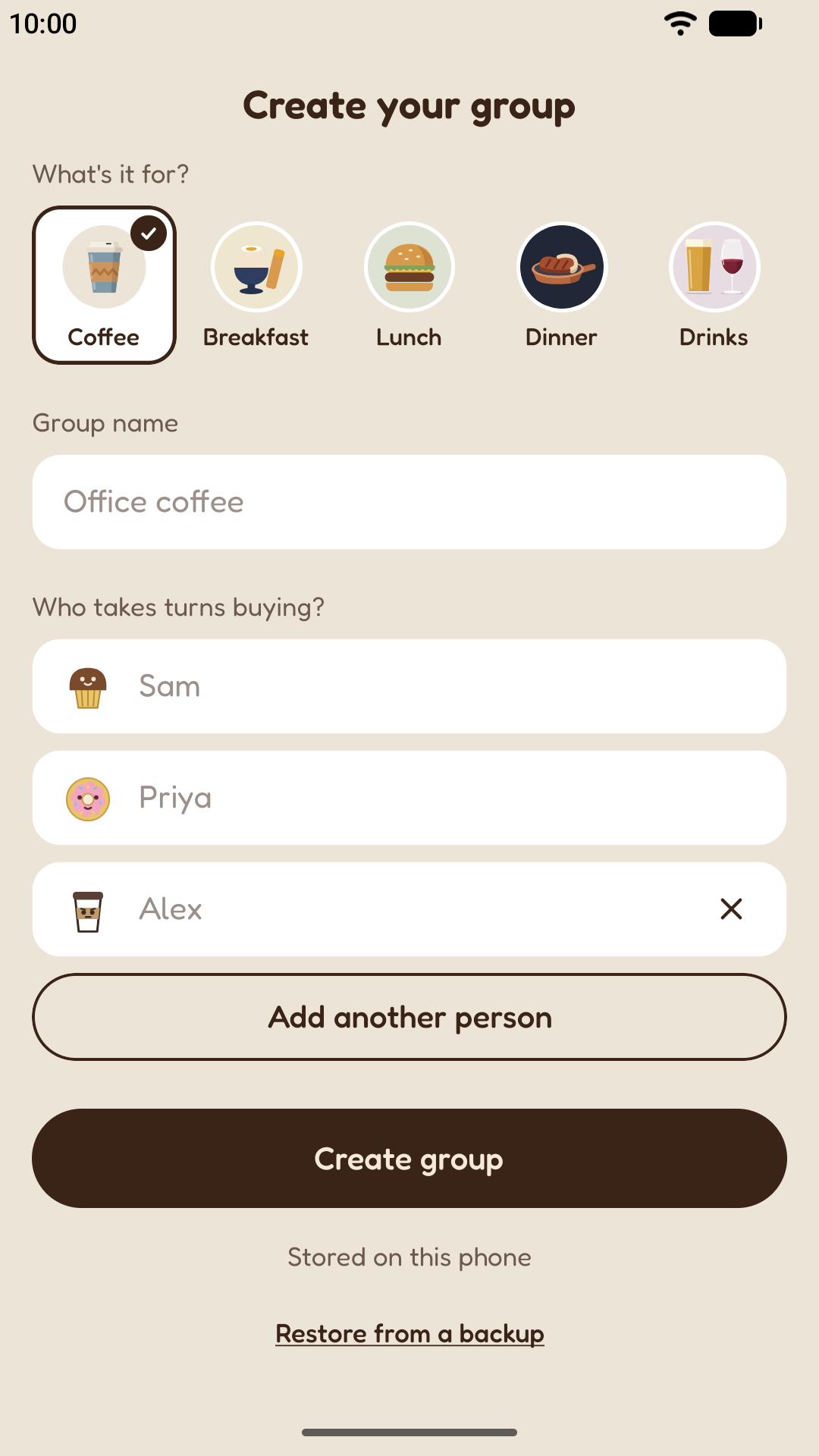
What's it for?
Pick what you take turns buying. The screen changes to show how your group will look.
-
Group name
There's a name to start you off. Keep it, or type your own.
-
Who takes turns buying?
Type a name on each line. You need at least two people. Tap an avatar to change it, or Add another person for more.
-
Create group
Once everyone's added, tap here. Then you'll get a quick tour of the main screen.
-
Restore from a backup
Moving from another phone? If you've saved a backup, restore it here instead.
The main screen
-
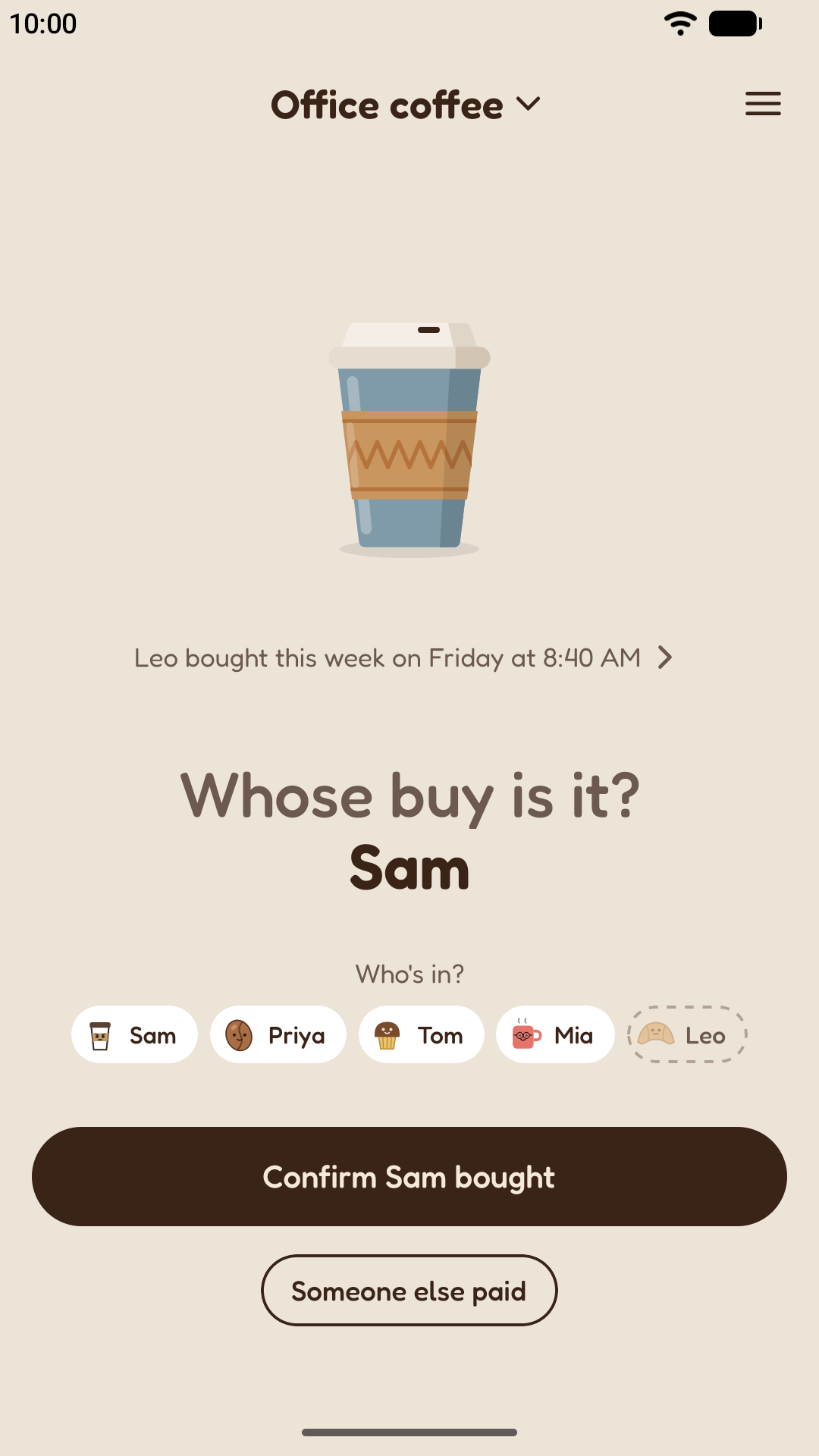
Whose buy it is
It's Sam's buy. It counts coffees, not turns: whoever has bought least for others goes next.
-
Who's in?
Tap anyone who isn't coming today. The buyer updates straight away.
-
Confirm the buy
Once they've bought, tap here. It moves on to the next person, and you can undo for a few seconds.
-
Someone else paid
Someone else bought? Tap here and pick who.
-
History
Tap the last buy to see the group's history.
-
Groups and settings
Tap the group's name to switch groups, start a new one or manage this one. ≡ has settings, backup and help.
Still stuck? The support page answers the questions people ask most.